
Better Open With
 Better Open With is a small macOS utility for changing the default app for a file type. Pick an extension, choose an installed compatible app, and apply the system default—just like Finder’s Get Info → Open with → Change All….
It also adds an optional Finder contextual menu for selecting an app without leaving Finder.
What it does
- Sets the macOS default app for an extension or content type, such as all PDFs, JSON files, or images.
- Lets you save and switch between named default-app profiles.
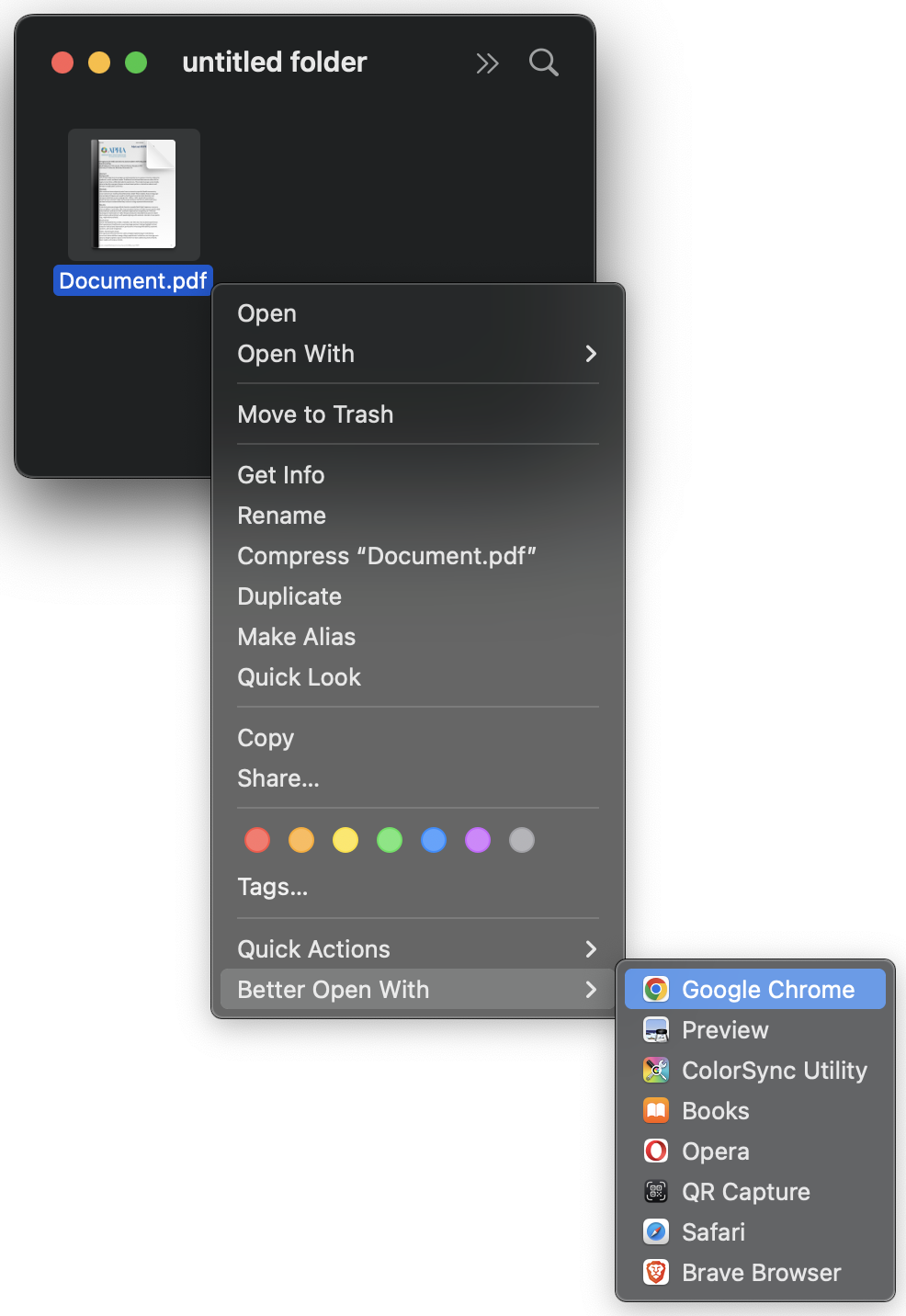
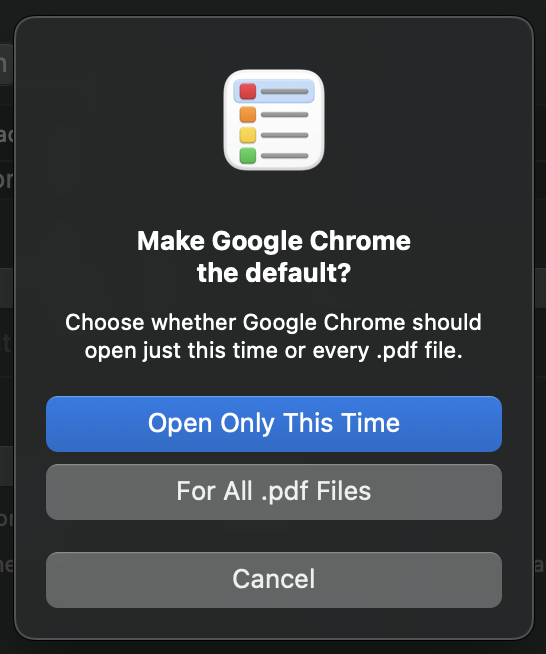
- Offers a Finder contextual menu with Open Only This Time and For All .ext Files choices.
- Can keep running from the menu bar after its window is closed.
Finder workflow
Right-click a file in Finder, choose Better Open With, then select a compatible app. The menu shows the installed apps that macOS can use for the selected file.
Choose Open Only This Time to leave the current default unchanged, or For All .ext Files to make the selected app the system default for that extension.
 |  |
Downloaded files and quarantine
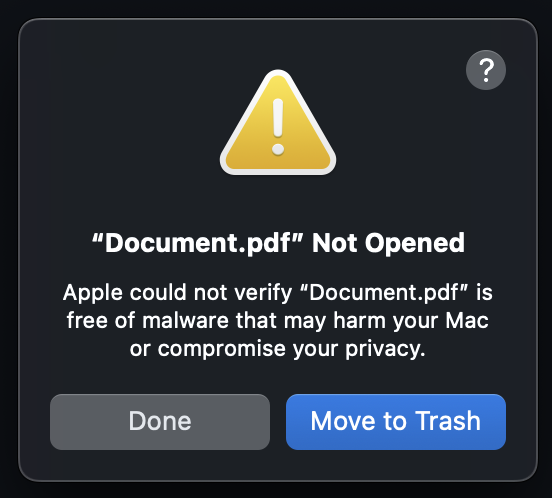
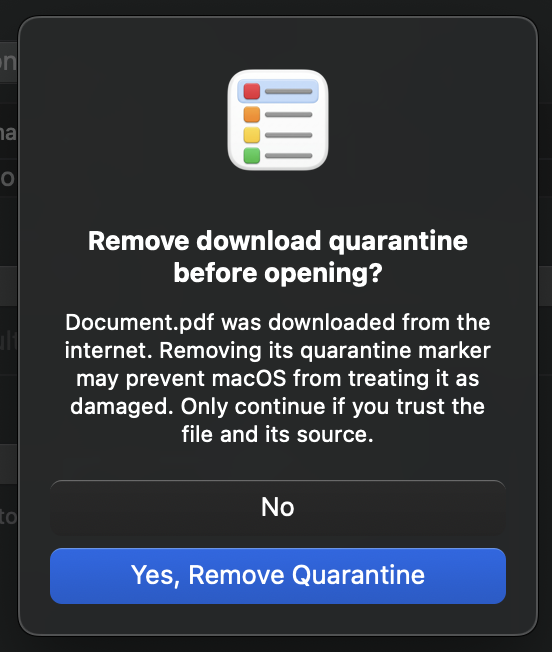
Before opening a downloaded file, Better Open With detects macOS’s quarantine marker. It asks whether to remove that marker first, which can prevent the misleading “damaged” warning when you trust the file and its source. No is the default and lets macOS handle the file normally; choose Yes, Remove Quarantine only for a file you trust.
The macOS warning appears only when the file is opened normally with macOS, or when you choose No in Better Open With’s request. When you open through Better Open With, its quarantine request is shown first.
 |  |
Experimental file-specific defaults
File-specific rules are disabled by default because macOS stores them as metadata on the individual file. They can be less reliable than extension-wide defaults when a file is copied, replaced, or stored on a service that does not preserve macOS metadata.
To enable them, open Settings and turn on Enable file-specific defaults (Experimental). The File target and per-file options then appear with an experimental label.
Download and install
- Download the latest
BetterOpenWith-*.zipfrom the Releases page. - Unzip it and move Better Open With.app to
/Applications. - Open the app. Because preview releases are not notarized, macOS may ask you to confirm that you want to open it. Control-click the app, choose Open, then confirm.
- To add the Finder contextual menu, open Settings and choose Manage Finder Extensions…. Enable Better Open With there.
If the Finder menu does not appear after enabling the extension or installing an update, relaunch Finder:
- Hold Option, right-click Finder in the Dock, and choose Relaunch; or
Run this command in Terminal:
killall Finder
To remove the menu later, return to Manage Finder Extensions… and turn off Better Open With.
Build from source
Requirements:
- macOS 12 or later
- Xcode 15 or later
- An Apple Development signing team if you want to run the Finder extension outside Xcode
Open BetterOpenWith.xcodeproj in Xcode, select the BetterOpenWith scheme, set your signing team for both targets, then Run.
Or build from Terminal:
xcodebuild \
  -project BetterOpenWith.xcodeproj \
  -scheme BetterOpenWith \
  -configuration Debug \
  -sdk macosx \
  build
Run the test suite with:
xcodebuild \
  -project BetterOpenWith.xcodeproj \
  -scheme BetterOpenWith \
  -configuration Debug \
  -sdk macosx \
  CODE_SIGNING_ALLOWED=NO \
  test
The app uses AppKit, Finder Sync, and Launch Services. Launch Services changes can be briefly cached by Finder and other apps; relaunch Finder using one of the methods above before treating a new association as failed.
Release builds
Pushing a tag named v* runs the release workflow. It builds a ZIP containing the app and publishes it to the matching GitHub Release. These builds are unsigned and are intended for testing unless signing and notarization are added by a maintainer.
Technical notes
- Extension-wide defaults are stored by macOS Launch Services.
- Experimental file-specific defaults are stored with the file and take precedence over the extension-wide default.
- Download quarantine is only removed after an explicit confirmation.
- The Finder extension is the supported way to add a Finder contextual-menu command. Finder controls where third-party menu sections appear.